The Australian Immi App is available for eligible visa applicants to provide their passport details and a live facial image in the following countries:
- Albania
- Algeria
- Bahrain
- Bhutan
- Bosnia and Herzegovina
- Cambodia
- Colombia
- Egypt
- Ethiopia
- Eswatini
- Fiji
- France
- Ghana
- Greece
- Hong Kong (Special Administrative Region of the People's Republic of China)
- Iran
- Iraq
- Jordan
- Kuwait
- Lebanon
- Lesotho
- Malaysia
- Mexico
- Nepal
- New Zealand (third-country nationals)
- Oman
- Pakistan
- Papua New Guinea
- Peru
- Philippines
- Qatar
- Samoa
- Saudi Arabia
- Singapore
- Solomon Islands
- Somalia (third-country nationals)
- South Africa
- South Korea
- Sri Lanka
- Thailand
- Tonga
- Türkiye
- Tuvalu
- Uganda
- United Arab Emirates
- Vanuatu
- Zimbabwe
You can download the Australian Immi App from the following stores:
To provide your identity information using the Australian Immi App you need to have a:
-
Requirement to provide personal identifiers (biometrics) letter with a Visa Lodgement Number (VLN) commencing with AUI
- valid passport.
If your VLN does not commence with AUI, you must attend an Australian Biometrics Collection Centre (ABCC) to provide your personal identifiers.
Your smartphone (iOS/Android) device must have a steady mobile or Wi-Fi internet connection and be equipped with the following settings:
- Allow the Australian Immi App to access your phone camera.
- Near-Field Communication (NFC) enabled.
- Location services made available for the Australian Immi App.
To confirm if your device is compatible for use with the app, see the instructions in the Apple App store or Google Play Store.
Once you have downloaded the mobile app, follow the instructions to provide your passport information and an applicant photo.
Step by step guide
You must follow these steps in order to complete your identity check:
- Provide Visa Lodgement Number (VLN)
- Scan passport data page and chip
- Confirm passport information
- Take applicant photo
- Submit the identity check.
The information below can help you with each of these steps.
Step 1: Provide Visa Lodgement Number (VLN)
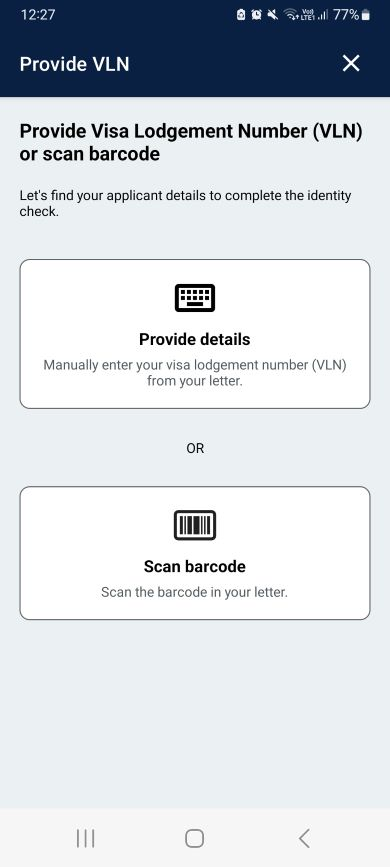
Your VLN is located on your
Requirement to provide personal identifiers (biometrics) letter. The code starts with AUI and includes letters and numbers.
There are two ways you can provide your VLN
- Scan the barcode on your letter.
- Manually enter the code.
If you are submitting an identity check for multiple family members, each person will have their own VLN. Make sure you enter the correct VLN for each person.
Step 2: Scan passport data page and chip
Before you begin using the Australian Immi App, you must enable the NFC capability of your device. You can do this in your phone’s settings.
To scan your passport, remove the cover or wallet from your mobile device.
Open your passport to the personal data page.
Position your mobile device over the passport.
Make sure you do not obstruct the camera with your fingers, and avoid any glare, reflection or shadows.
The red outline will turn green when the passport is in the right spot.
A successful scan will contain the entire page including the two lines of numbers and letters at the bottom.
Read passport chip (if available)
Passports with the following symbol contain a passport chip. If your passport does not contain a chip, the chip-reading step will not be required.

The chip will be on the front or back cover of the passport depending on the nationality of your passport.
Place your device directly on top of the chip so that it is touching the passport.
Move your device slowly around the passport until the app recognises the chip. A reading chip message will display on Android devices and a progress bar will display on Apple devices.
At this point, do not move your device until the scan completes.
Step 3: Confirm passport information
The information collected from your passport will display on your screen.
You need to review it and confirm the information matches your passport. If it does not, you must rescan your passport.
Step 4: Take applicant photo
During the identity check process, you must take a photo of yourself.
Here are some tips to help you to successfully take a photo to support your identity check:
- Stand in front of a light-coloured wall.
- Make sure there are no objects in the background.
- Frame your face in the highlighted oval on the screen.
- Face forward and look directly at the camera.
- Have your eyes open and visible.
- Remove your glasses, if practical.
- Avoid shadows on your face.
- Make sure there is nothing covering your face or eyes.
- Make sure there are no other objects or people in the photo.
When the device is in the correct position, the red oval turns green, and the photograph is captured automatically.
Note that heavy makeup on your face may affect the suitability of the photograph.
You will have an opportunity to review your photo and retake it if required.
If, after several attempts you are still unable to provide a photo, see your
Requirement to provide personal identifiers (biometrics) letter which explains how to provide your biometrics at an ABCC.
Step 5: Submit your identity check
If you would like to receive an email to confirm the submission of your identity check, enter your email address in the field provided.
When you submit your identity check
The Australian Immi App will send your passport details and facial images to the Department of Home Affairs. The Australian Immi App does not store your data after submission.
If an error occurs and your information has not been sent to the department, the Australian Immi App will tell you that you need to capture this information again.
Once you have completed all required steps in the app, you will see a final screen confirms your information has been successfully submitted to the department. You do not need to attend an ABCC. If the department needs any more information after you submit your identity check, we will contact you with more instructions.
ImmiAccount will be updated within 24 hours of your submission.
For details of the median processing times for key visa programs, see
Visa processing times.
For details of the progress of your visa application and any outstanding requirements, visit ImmiAccount.
For more information about providing biometrics to support your visa application, visit
Biometrics.
For more information regarding the Australian Immi App, check the FAQ section in the app.
